Showing posts with label leopard. Show all posts

Friday, December 25, 2009

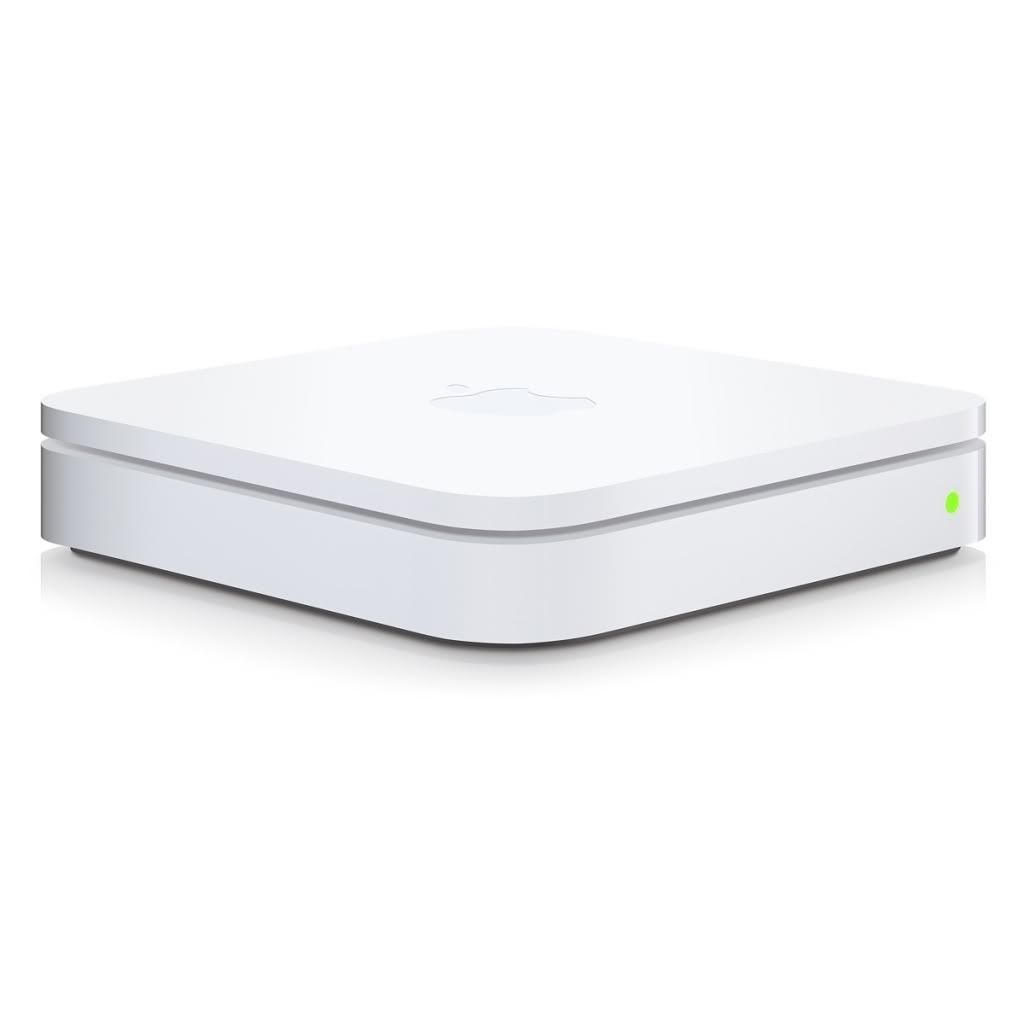
New Airport Extreme Crashes Wireless Tiger Clients

I've spent most of Christmas Day trying to figure a way out of this mess. I even downgraded my old Powerbook G4 to Panther, only to discover that it--initially--had no support for WPA security (doing the normal upgrades to it now via Ethernet). Not sure why it seems that every time I buy a new piece of Apple gear, it doesn't cooperate very well with older Apple gear. I understand that time moves on (and Apple wants us to as well), but one expects things like basic wireless in a working Mac to continue working with newer Apple wireless routers. But no.

I initially thought the problem might be my new WDS setup, but that's not the case. The kernel panics persisted, whether I disengaged WDS or not.

The Airport Extreme Base Station in its current firmware incarnation (7.5) causes kernel panics on ALL wireless clients running Tiger 10.4.11. This is confirmed by multiple users on the Apple Support Boards:

My Apple Tech confirmed (early November) that there is a known problem with the new Airport Extreme Dual Band Base Station causing kernel panics on computers running Tiger (only when connecting wirelessly via an Airport card -- not when connected via Ethernet cable). Apple Engineering has been notified and has not -- as yet -- released a software update to Tiger. Based on some customers' reports, we tried disabling the Guest Network on the base station, but that didn't work for me. Has anyone figured out a work-around besides 1) the ethernet cable and 2) upgrading to Leopard?

[From Apple - Support - Discussions - Kernel Panic when Running Tiger ...]
One user managed to get Apple to send him a Leopard install to address the issue:

Here's my experience. Ran two iMacs with Tiger 10.4.11 and a new iMac Intel Core Duo with an Airport 801.g Extreme. Alls well. I upgraded to an Airport 801.n and all **** broke loose with Unresolved Kernel Traps (UKT) on both Tiger machines. I managed to obtain Leopard from Apple and will upgrade each Tiger machine a couple of days apart to be sure I don't have any more UKTs. Then I will reinstall the Airport 801.n and see what happens. If I can believe what Apple Support has told me my problems should be solved. I should know by end of this coming weekend.

[From Apple - Support - Discussions - Kernel Panic when Running Tiger ...]

So I put in a service call to Apple and spoke with a rep today; the rep didn't offer a Leopard install like they did for the other user, and they didn't even admit that there was a known problem:

No dice. Just got off the phone with Apple and their solution for me was to go into the Apple Store. He said it was a computer issue...not the AEBS. I even brought up this thread (i.e., Tiger incompatible with new AEBS) and that other users said that Apple had acknowledged this problem. He said he had not heard that and that it was my computer?

Keep in mind that I told him that both my G4 machines are running Tiger (Powerbook and Mac Mini) and both are kernel panicking with the new AEBS.

So, I obviously didn't get the good support that you received...

[From Apple - Support - Discussions - Kernel Panic when Running Tiger ...]

I've basically tried everything (including doing Leopard installs using Target Disk mode), and nothing is really working (the G4 versus Intel architecture creates problems--i.e., the GUID versus APM). I either must get a Leopard Retail disc from Apple or wait for them to officially acknowledge the problem and issue a firmware update. Arggggghhh! My Powerbook is now running 10.3.9 (Panther) after the updates and is doing fine on the new AEBS, so this PROVES it's Tiger that is not compatible with the new Airport Extreme Base Station (802.11n). The Mac Mini is dead in the water at the moment in terms of wireless connectivity (I have the Airport turned off...and no more panics). I have ordered some cheap Cat-5 cable, which should be here soon and keep the Mini running until the firmware update shows up. Apple, your users really shouldn't have to go through such nonsense.

FOLLOW-UP on 26 DEC 2009:

As a follow-up, my issues were solved by installing Leopard on my G4 machines, which was not easy. See my post below on the Apple Discussions thread:

I can confirm now--as have others here--that it is definitely the Airport Extreme Base Station (802.11n) that is causing the kernel panic problem with Tiger. It will also not cooperate with Panther 10.3.9, IF you install the AirPort Extreme Driver Update 2005-001 update:

http://support.apple.com/kb/DL426

I downgraded my Powerbook G4 Aluminum 15" to Panther and had it working well at 10.3.9 until I installed the above driver update, so this driver (or some code within it) is the culprit; obviously, it hung around in Tiger but changed in Leopard and Snow Leopard (hint, hint, Apple).

I have now managed to update my old G4s (through much effort) to Leopard and both are cooperating nicely now with the Airport Extreme Base Station. I suspect Apple will update the driver eventually, but if you're having issues...go back to Panther (w/o the aforementioned driver update) or upgrade to Leopard if your system will install/run it.

FWIW, I installed Leopard on my old G4 Mac Mini (with 512 MB RAM) using Target Disc mode from the Powerbook running the install DVD. Leopard would not install any other way on that machine. Good luck all!

[From Apple - Support - Discussions - Re: Kernel Panic when Running Tiger ...]

Monday, December 21, 2009

Apple Aluminum Keyboard Low Power Warning

If your Aluminum Apple keyboard suddenly tells you it can't power a USB device anymore (that it once did power without issues -- WTF Apple?!?), try unplugging the keyboard for 30 seconds and then replugging it. My SD card reader works again after doing that, though the LED no longer lights up. My Logitech camera (that once worked plugged into the keyboard) seems to not work anymore. I wonder if this was a change from Leopard to Snow Leopard?

Apple makes great stuff, but they'll just randomly change things sometimes, seemingly unconcerned with the problems those changes will cause to their uses. Rakin' frakin'...

Just had this problem on my late '07 Alu iMac. never had any bother before, it was always possible to have the wired MM and 5th Gen iPod attached. Today got a low power warning on just the iPod! (wireless MM now)

I unplugged it and reconnected after 20s - was all fine again. How odd.

interested on the power discussions here, the system profiler says the ipod is drawing 500mA thru the keyboard, and the keyboard itself only needs 20mA

[From New Apple keyboard, doesn't sync or charge ipod nano - Page 5 - Mac Forums]

Saturday, December 19, 2009

Using Preview to Merge and Save PDF Documents

Neat trick for Preview! Changed a bit since Leopard.

For Snow Leopard 10.6.0, Apple changed the way this feature works in Preview Version 5.0 (501) and made it more cumbersome. Here’s how it’s done in Snow Leopard:

Open a PDF.

Expose the Sidebar.

Drag the PDFs you want to include in the Sidebar area.

Note B: The PDFs all retain their name in the Sidebar (contrast with Note A).

Select all but one of the PDFs in the Sidebar.

Drag and drop the selection into the unselected PDF recipient.

Note C: You only get one chance at this or you’ll need to start over. You can only drop one set of PDFs onto the recipient.


Note D: After doing so, the recipient icon changes to include a Binding Comb on the left edge. Moving the arrow cursor over the combined PDF exposes a circle-left-turn arrow on the right edge.


Save or Save As the PDF. VoilĂ  – one PDF.

[From Snow Leopard Changes Preview’s “Combine PDF” Behavior « blog.gerrior.com]

Friday, December 26, 2008

Preview app: Print non-contiguous pages


PreviewPrint non-contiguous pages in Leopard’s Preview | Mac OS X Hints | Macworld:

Open your multi-page PDF in Preview, hold down the Command key, and click on each page you’d like to print. With more than one page selected, the File -> Print menu item changes to read File -> Print Select Pages. Choose that, or just press Command-P, and you’ll print the selected pages.

Sunday, December 21, 2008

User accounts and file sharing in Leopard

Computerworld - User accounts and file sharing in Leopard: What's new:

NetInfo is no more, and you can now create groups and share any folder on your Mac.

Apple has made some major improvements in Leopard when it comes to creating and managing user accounts, file sharing and remote access. The biggest change, though, is something most Macintosh users may never see because it was accomplished so seamlessly: Apple has retired the proprietary NetInfo database that has stored and managed local accounts since the beginning of Mac OS X.

Monday, September 22, 2008

"Install and Keep Package" ignores you

This Leopard bug has bitten me. It kept my first few updates in the Downloads folder, but that has all stopped now. Anyone?

Official Leopard 10.5 Bugs thread - Page 5 - MacNN Forums:

Software update isn't keeping packages if I choose "Install and keep package"... Unless they are very, very hidden. I checked /Library/Packages, /Library/Updates, ~/Downloads, ~/Library.. Can't find em anywhere.

I've read it works if you choose "Download only", they end up in your download folder.

Maybe it's fixed in 10.5.1, but that was the update I was trying to install and keep.


Shane's Top Mac Troubleshooting Tips

(This was posted originally in January 2006 when running OS X 10.4.3, Tiger; it has been updated to address changes since Snow Leopard in 2009).

I’m no expert on this stuff, but due to the years of diagnosing and fixing Mac issues (since 1993 to be exact with my old Classic II) I’ve developed a few troubleshooting routines that I automatically run through when stuff starts acting weird. Of course, most of the tricks of the old classic pre-X days are useless now (unless troubleshooting for Classic, of course), but here are some helpful ideas for X (currently 10.6.2).

= Command key (might have an Apple on the key as well)
= Option key
= Shift key

[Complete List of Macintosh Keyboard Shortcuts - http://support.apple.com/kb/HT1343]

First, get to know these helpful “snags” (startup key sequences):

* Start up in Open Firmware: --O-F (more below)
* Reset parameter RAM: --P-R (zaps the PRAM - see also Open Firmware reset)
* Bypass startup volume: -- -Delete (gets to a new volume if your current one is busted)
* Open the Startup Manager: (pick the volume you want to start up from)
* Force Mac OS X startup: X or -X (start in OS X)
* Start up from an optical disc: C (force start from your CD or DVD drive)
* Eject optical disc: mouse, trackpad button, or hold down the eject button (at startup)
* Start up from a network server: N (if you have a network startup volume)
* Reset PowerBook screen: R (no clue)
* Start up in Target Disk mode: T (firewire two computers together and boot from the other)
* Start up in Safe mode: (more below)
* Start up in Verbose mode: -V (great for seeing what the startup problem is)
* Start up in Single-User mode: -S (more below)

Most of these key sequences are still valid for Classic OS boots also (pre-X), and most of these don’t work if an Open Firmware password has been set using either Terminal or Apple’s OFPW application. Using an OF password is a good idea, especially for notebooks that could get stolen (protect your data from thieves at least).

Backup, Backup, Backup

Before doing anything, learn to regularly backup your system. I backup every hour to another drive (using Time Machine). It’s always best to keep two backups if possible, but one is better than none. There are other good backup solutions available too, such as Carbon Copy Cloner and SuperDuper. Do a backup immediately before making any major changes to your system too!

Programs are a-crashin’

If you have apps that are crashing, not responding, or you’re getting kernel panics, this is a sign that something is amiss. Here are the beginning steps to take:

• Repair permissions using Disk Utility if you can (this should always be your first step). Always try to repair permissions from the startup volume itself. If that doesn’t work, startup from your Install Disc and repair permissions from the Install’s Disk Utility (see below).

• Try logging out and back in.

• Try creating a new account and see if the problem persists. If it goes away then the problem is likely with your Home folder.

• Try restarting (rebooting).

• Check the volume for file system errors. There are a few ways to do this. I usually boot into Single-User mode first (see above snag list); to run a file system check, at the prompt type:

# /sbin/fsck -fy

If errors were found, continue running the above command until they’re gone; then type:

# reboot

If no errors were found, continue booting normally by typing:

# exit

Of course, you can also boot from your OS X install disc (hold C while booting), Repair Permissions, and run Repair Disk in Disk Utility. If Disk Utility or fsck won’t do the trick, consider an emergency boot disc or another bootable volume (separate hard drive or partition) with TechTool Pro or Disk Warrior to repair the volume.

• If none of these steps solved your problem try what’s listed below.

Safe Mode ( while starting up)

Here’s what it does for you:

* Performs a directory check of the hard drive identical to clicking Repair Disk in the First Aid pane of Disk Utility.
* Ignores kernel extensions cache (/System/Library/Extensions.kextcache).
* Loads only required kernel extensions (/System/Library/Extensions).
* Runs only Apple-installed startup items (/Library/StartupItems and /System/Library/StartupItems).
* Loads only those fonts in /System/Library/Fonts (Mac OS X 10.4 or higher).
* Trashes all font caches stored in /Library/Caches/com.apple.ATS/user ID number (Mac OS X 10.4 or higher).
* Disables Login Items (Mac OS X 10.4 or higher).

Safe Mode is a limited mode which also allows one to install and uninstall software and kernel extensions, and Disk Utility will easily repair permissions while in Safe Mode. Also, a good troubleshooting step while in Safe Mode is to use the Finder to delete the following:

/Library/Caches/* (delete entire directory contents)
/System/Library/Caches/* (delete entire directory contents)
/System/Extensions.kextcache (delete only this file)

NOTE: This can also be done in Single-User mode (see below).

More Single-User Tricks (-S while starting up)

Much can be done in Single-User mode (not just running fsck). It’s basically the BSD command line, so you can mount volumes and do a variety of maintenance tasks if you’re Terminal savvy (er…you’re a UNIX geek). To learn more about these commands and what they do, Google it and find out!

Mount the volume:

# mount -uw /

Run the cron routine maintenance scripts:

# sudo periodic daily
# sudo periodic weekly
# sudo periodic monthly

Update the prebindiing:

# sudo update_prebinding -root / -force

Repair permissions:

# sudo diskutil repairPermissions /

Eliminate some startup, cache, and kernel extension problems:

# /sbin/mount -uw /
# cd /Library/Preferences
# rm com.apple.loginwindow.plist
# rm com.apple.windowserver.plist
# cd /Library/Caches
# rm -r *
# cd /System/Library
# rm Extensions.kextcache
# cd /System/Library/Caches
# rm -r *
# reboot

You could also install Applejack, which is a wonderful utility to automate many Single-User maintenance and troubleshooting tasks for you.

Open Firmware (--O-F while starting up)

One could do quite a bit of damage when booting into Open Firmware (basically the Mac version of BIOS), so stick strictly to these commands unless you really know what you’re doing.

You can check the current OF environment by typing:

> printenv

To reset the OF and reboot, at the prompt type:

> reset-nvram
> set-defaults
> reset-all

Sometimes, you’ll need to eject a disc when the usual methods (holding down the mouse, E, or Eject buttons) don’t work. In OF, do this:

> eject cd
> mac-boot

Another neat fact. OF is based on the old programming language called Forth, which was originally written by an astronomer named Charles Moore to control telescopes. Forth is unique in the way it handles math; one must think in RPN (Reverse Polish Notation). So to add 2 and 5 to get 7, at the prompt type:

> 25+
> 7

Hopefully by now, your problem is solved. If not, you’re going to have to jump in some place like Apple Support (especially Discussions) or MacFixit forums.

Other Resources

Lots are available online, but here are some great links:

http://delicious.com/sonicdeviant/macintosh+Troubleshooting%20

Monday, September 01, 2008

Restoring from Time Machine back-up

It can do more than just restore some lost files...use it to recover your entire system!!!

Restoring from Time Machine - James Duncan Davidson:

Once booted, I formatted the new hard drive and then from the menu bar selected Utilities > Restore System from Backup... This brought up a dialog to let me select the Time Machine source drive to use. I'll be curious to see if the restore utility will be able to find Time Machine volumes on the network, say in Time Capsules, but that will be a test for another day. In any case, the only catch I can see is that your disk has to be visible to the system without any special drivers. This rules out putting your Time Machine volume into an external eSATA enclosure hooked up to a card that requires drivers to work. Most of you probably don't fall into the situation, so don't sweat it. Use a Firewire, USB, or extra internal disk and you're golden.

***

In the morning, my system was fully restored. After rebooting, everything was right where I left it. Well, that's not entirely true. Not quite everything was there. Time Machine doesn't back up data that can be reconstructed, such as caches and indexes. This means that Spotlight will have to rebuild its index and won't be immediately available. It also means that when you launch Mail, it will think it's the first time it's been launched and will go through a "Welcome to Mail" process where it imports all of the mail messages that are on your system. It's not downloading things from your IMAP server, just recreating its database.


Tuesday, January 01, 2008

Fix some Mac slowdowns

Macworldlogo

Here are some good tips for fixing slowdowns on your Mac.

Macworld | Fix Mac slowdowns

I especially like the advice given for web browsing and using Mail:

Quit and Relaunch Web browsers tend to be resource hogs, and if you visit lots of media-rich sites, this effect can increase over time. Quit and relaunch your browser occasionally (at least once a day) to speed up browsing and reduce your browser’s impact on other programs.

Over time, though, these databases can become cluttered or even corrupted, resulting in slower overall performance, among other problems. You may be able to speed up your e-mail client significantly by rebuilding the message index every few months.

Mail’s Rebuild command (Mailbox: Rebuild) works only on individual mailboxes.

Shutting down with the newer keyboards

Losing my old Kensington keyboard means losing my power button. But even though I can't power up from the keyboard anymore, I can still shutdown or restart easily:

Apple - Support - Discussions - The ole keyboard shutdown ...:

Hit CTRL (yes, CTRL, not CMD) and EJECT key. This will bring up 'Are you sure you want to shut down.... dialogue box. Once in there, hit enter/return for shut down or hit 'S' to sleep.

And to bypass the dialog:

Apple - Support - Discussions - Power up from keyboard. ...:

Sleep = opt + cmd + eject
Restart = ctrl + cmd + eject
Shut Down = ctrl + opt + cmd + eject

Saturday, December 01, 2007

Windows apps on a Mac (sans Windows)

Here's another potential Microsoft killer (I hope this is making them shake in their Redmond boots in the same way they gasp at OS X, the iPod, and iPhone):

Uncovered: Evidence that Mac OS X could run Windows apps soon

Leopard apparently contains an undocumented loader for Portable Executables, a type of file used in 32-bit and 64-bit versions of Windows. More poking around revealed that Leopard's own loader tries to find Windows DLL files when attempting to load a Windows binary.

PC User Compares Leopard to Vista

Leopard is the New Vista, and It's Pissing Me Off:

Pcm 15 Header Surprise, surprise! A PC Magazine columnist, who claims to worship OS X 10.4 (Tiger), is more or less calling Leopard OS X 10.5 unfit for release in much the same way Vista was unfit (and is still unadopted by the PC faithful).

Let's break this idiot's diatribe apart piece-by-piece, shall we?

Let's see, Tiger crashed—oh yeah, NEVER. Ten months and I'm installing everything from production-level Office for the Mac 2004 to 0.x releases of VLC, Seashore, and Ecto—even betas of Firefox and Parallels. Whatever my nerdy little heart desires. I've had those early apps crash, but Tiger never faltered.
First of all, BS! All OS's crash, though I proclaim that OS X is typically more stable than Windows, regardless of the version. I guarantee you that Tiger version 10.4.0 crashed MORE than version 10.4.5, and so on. Now the latest version of Tiger (10.4.11) has some quirks that tick me off in a few included apps (like making me use Safari 3.x, for example), but what we're seeing here from this guy is a little overstated.

The first version of anything is going to have bugs. All developers rely on the cutting-edge crowd to find the junk in their code that they have been unable to find. Basically, if you buy and install the first version of anything, you're paying to be a beta tester, whether you like it or not!

Later on, the goon states:

A month of using Leopard with the same software I had under Tiger and the OS has dumped six times. That's six cold reboots for Oliver. Apple isn't even honest enough to admit that Leopard is crashing: The OS just grays out my desktop and pops up a dialog box telling me I've got to reboot. Like the whole thing is my fault. I even snapped a picture of it. After all, I HAD PLENTY OF CHANCES! And all my complaints, mirrored by online forum traffic, are the same complaints I heard about Vista when it first reared its unbaked head.
Next lesson for this noob. Developers of software for a particular OS MUST CATCH UP WITH THE LATEST OS RELEASE! If they don't, IT'S NOT APPLE'S FAULT! Hello, are you listening, Oliver? Every time I've upgraded to a new version of OS X, apps that once worked on the previous version have occasionally had problems. I either must wait until the developer fixes the app to work with the new OS version, or I MUST CHOOSE NOT TO UPGRADE UNTIL ALL THE APPS I USE ARE COMPATIBLE. These are all simple, elementary things that every savvy computer user knows. PC Mag...I'm available if you need a writer with a brain who uses a Mac.