Sunday, October 26, 2008

Play a VCD on your Mac

If you ever need to play a VCD on your Mac, here's how:

How to Play VCD, XVCD on Mac or Windows computer, or DVD Player:

How to Play a VCD using QuickTime Player (Mac)

QuickTime Player will play a Video CD (VCD), but doesn't recognize the VCD format, so it will not find the video files on the disk and play them in order. You have to find each of the videos files for it and then open them.

To play a VCD with QuickTime Player:
  • Launch QuickTime Player.
  • Insert the VCD in the CD Drive.
  • From the menu bar, open the MPEGAV folder on the VCD you want to play (File>Open File>"Video CD" Name>MPEGAV
  • Select the first file and click the "Open" button. On the Player window, click the play button (>).
  • Adjust the screen size. For full screen playback, upgrade to QuickTime Player Pro ($29.99).
  • When QTP has played the file, open the MPEGAV folder again, open the next file and click the play button. Repeat this step until you have played the entire movie.

Saturday, October 18, 2008

iT8: Convert any file to an "audiobook"

Neat little tip...thanks!

ITunes: iTunes 8 Makes It Easy to Convert Any File to an Audiobook:

The simple trick? Just right-click a track and select Get Info, head to the Options tab, and then select Audiobook from the Media Kind drop-down menu. The file will instantly leave your Music library and head straight for your Audiobook library. To mark multiple files at once, just select them all and go through the same process. The only remaining step is to tick the Remember Position checkbox if you haven't already, and your tracks should now have easily found their way to your Audiobooks section, and even better, they should work like an audiobook.

Tuesday, October 14, 2008

OSX's Firewall: ipfw


FirewallDon't waste your money on other firewall products. Apple comes with two great ones built right in. One can be found in System Preferences->Security->Firewall. The other is hidden and a bit more powerful. Just grab one (or both) of these free utilities to ease your ipfw configuration (which can be a little tedious via the command line), and you'll be safer in your online activities. These firewall offerings basically control what data is allowed into your computer, so if you ever have trouble doing something online, check your firewall settings first.

You might want to add Little Snitch too (for outgoing connections), and if you connect with a router, keep in mind that you're already behind a hardware firewall. You need a software firewall for when you're at Starbucks or some such place, using a wireless hotspot.

Macworld | Mac Gems | NoobProof 1.1 and WaterRoof 2.0:

Mac OS X’s built-in firewall—an implementation of the Unix ipfw program—works well, but Apple offers very few options for configuration. Hanynet’s NoobProof 1.1 and WaterRoof 2.0 are utilities that provide just such customization.

Sunday, October 12, 2008

iMovie 08 bites

Come on Apple! This is the kind of idiotic thing Microsoft does: Take software that's working well and, inexplicably, redesign key interface elements so that it becomes almost unusable (just look at the new MS Office 2007 for an example). Whoever convinced the iLife supervisors at Apple that the timeline in iMovie had to go should be sacked, posthaste, and those Apple supervisors should probably be booted as well. God, we're in trouble once Steve Jobs either retires or dies!

There's no end to the ranting out there regarding this issue, but just so you're aware...Apple apparently understands it's a dumbass, because they allow downloads of iMovie 06 to augment the 08 version. What they meant to say was "replace."

And just so you know, I made an effort and gave iMovie 08 a try; I just edited a movie with it. I got used to some things after a while (and a few new features are actually desirable), but it's still cumbersome and confusing. A timeline is too important, especially for audio edits.

BRING BACK THE TIMELINE APPLE! Leave the bumbling to Microsoft.

Saturday, October 11, 2008

Copy paths from the Finder

Need to copy a path to give someone instructions or tell them where to put something? Here are some ways to do it.

Macworld | Mac OS X Hints | Copy paths from Finder selections:

First, you can use the Services menu. In both 10.4 and 10.5, the Services menu works in the Finder. With the object whose path you’d like to capture selected in the Finder, choose Finder -> Services -> TextEdit -> New Window from Selection. A new TextEdit window will appear containing the full path to the selected item. Press Command-A to select it all, then Command-C to place it on the clipboard.

Another option is dragging the object from the Finder and dropping it into a TextEdit window (or a Terminal window). This will only work if your TextEdit document is in plain text mode—if you use rich text mode and drag in something TextEdit can open, such as a JPEG image file, the file will be opened. But with TextEdit set to plain text mode, you’ll instead see the path to the file or folder. Again, just select it and copy it to the clipboard, and you’re done. (Some third-party text editors support this feature as well; it works with Smultron on my machine, for instance.)

You can also copy any item (file or folder) in the Finder and paste it into Terminal. You’ll see the path on the command line; you can then select it with the mouse and copy it. You can also press Command-Space, then drag-and-drop the file into the Spotlight search box. Finally, you can drag a Finder window’s proxy icon—the small icon in the title bar of the window—into TextEdit (again, in plain text mode) to see the path to that folder. Select the path and copy it to your clipboard.


Great idea for syncing keychains

No MobileMe or dotmac required!

Extra Pepperoni » Keychain Sync without .Mac:

I thought of a solution for manual sync last week: One keychain per Mac. Say I have 3 systems: work, home, and other. Each system has 3 Apple keychains: work.keychain, home.keychain, and other.keychain, with each host using its own as the default. Then I can rsync work.keychain to home.keychain & other.keychain, etc. This is awkward with rsync because it’s inherently unidirectional, but keychains are small so it’s quite feasible to script.

In Tiger, I know the keychain is actually stored in memory once it’s unlocked, so it’s good to lock (unload) all keychains with “security lock-keychain -a” before updating the files — this goes in the same script.


Thursday, October 09, 2008

Protect your MacBook or MBP from theft


MacbookThese techniques have actually been used to recover stolen MBs and MBPs and prosecute the scumbags who stole them. Video here.


How to Secure your MacBook or MacBook Pro against theft : Switching To Mac:


Do you have a MacBook or MacBook Pro? If you do then you’re in luck, give iAlertU and TheftSensor a try [also see Undercover]. These two free applications take advantage of your MacBook or MacBook Pro’s Sudden Motion Sensor as well as other input information to activate a Security Alarm-like sound notifying you of intruders on your Mac.

Monday, September 22, 2008

"Install and Keep Package" ignores you

This Leopard bug has bitten me. It kept my first few updates in the Downloads folder, but that has all stopped now. Anyone?

Official Leopard 10.5 Bugs thread - Page 5 - MacNN Forums:

Software update isn't keeping packages if I choose "Install and keep package"... Unless they are very, very hidden. I checked /Library/Packages, /Library/Updates, ~/Downloads, ~/Library.. Can't find em anywhere.

I've read it works if you choose "Download only", they end up in your download folder.

Maybe it's fixed in 10.5.1, but that was the update I was trying to install and keep.


Shane's Top Mac Troubleshooting Tips

(This was posted originally in January 2006 when running OS X 10.4.3, Tiger; it has been updated to address changes since Snow Leopard in 2009).

I’m no expert on this stuff, but due to the years of diagnosing and fixing Mac issues (since 1993 to be exact with my old Classic II) I’ve developed a few troubleshooting routines that I automatically run through when stuff starts acting weird. Of course, most of the tricks of the old classic pre-X days are useless now (unless troubleshooting for Classic, of course), but here are some helpful ideas for X (currently 10.6.2).

⌘ = Command key (might have an Apple on the key as well)
⌥ = Option key
↑ = Shift key

[Complete List of Macintosh Keyboard Shortcuts - http://support.apple.com/kb/HT1343]

First, get to know these helpful “snags” (startup key sequences):

* Start up in Open Firmware: ⌘-⌥-O-F (more below)
* Reset parameter RAM: ⌘-⌥-P-R (zaps the PRAM - see also Open Firmware reset)
* Bypass startup volume: ⌘-⌥-↑ -Delete (gets to a new volume if your current one is busted)
* Open the Startup Manager: ⌥ (pick the volume you want to start up from)
* Force Mac OS X startup: X or ⌘-X (start in OS X)
* Start up from an optical disc: C (force start from your CD or DVD drive)
* Eject optical disc: mouse, trackpad button, or hold down the eject button (at startup)
* Start up from a network server: N (if you have a network startup volume)
* Reset PowerBook screen: R (no clue)
* Start up in Target Disk mode: T (firewire two computers together and boot from the other)
* Start up in Safe mode: ↑ (more below)
* Start up in Verbose mode: ⌘-V (great for seeing what the startup problem is)
* Start up in Single-User mode: ⌘-S (more below)

Most of these key sequences are still valid for Classic OS boots also (pre-X), and most of these don’t work if an Open Firmware password has been set using either Terminal or Apple’s OFPW application. Using an OF password is a good idea, especially for notebooks that could get stolen (protect your data from thieves at least).

Backup, Backup, Backup

Before doing anything, learn to regularly backup your system. I backup every hour to another drive (using Time Machine). It’s always best to keep two backups if possible, but one is better than none. There are other good backup solutions available too, such as Carbon Copy Cloner and SuperDuper. Do a backup immediately before making any major changes to your system too!

Programs are a-crashin’

If you have apps that are crashing, not responding, or you’re getting kernel panics, this is a sign that something is amiss. Here are the beginning steps to take:

• Repair permissions using Disk Utility if you can (this should always be your first step). Always try to repair permissions from the startup volume itself. If that doesn’t work, startup from your Install Disc and repair permissions from the Install’s Disk Utility (see below).

• Try logging out and back in.

• Try creating a new account and see if the problem persists. If it goes away then the problem is likely with your Home folder.

• Try restarting (rebooting).

• Check the volume for file system errors. There are a few ways to do this. I usually boot into Single-User mode first (see above snag list); to run a file system check, at the prompt type:

# /sbin/fsck -fy

If errors were found, continue running the above command until they’re gone; then type:

# reboot

If no errors were found, continue booting normally by typing:

# exit

Of course, you can also boot from your OS X install disc (hold C while booting), Repair Permissions, and run Repair Disk in Disk Utility. If Disk Utility or fsck won’t do the trick, consider an emergency boot disc or another bootable volume (separate hard drive or partition) with TechTool Pro or Disk Warrior to repair the volume.

• If none of these steps solved your problem try what’s listed below.

Safe Mode (↑ while starting up)

Here’s what it does for you:

* Performs a directory check of the hard drive identical to clicking Repair Disk in the First Aid pane of Disk Utility.
* Ignores kernel extensions cache (/System/Library/Extensions.kextcache).
* Loads only required kernel extensions (/System/Library/Extensions).
* Runs only Apple-installed startup items (/Library/StartupItems and /System/Library/StartupItems).
* Loads only those fonts in /System/Library/Fonts (Mac OS X 10.4 or higher).
* Trashes all font caches stored in /Library/Caches/com.apple.ATS/user ID number (Mac OS X 10.4 or higher).
* Disables Login Items (Mac OS X 10.4 or higher).

Safe Mode is a limited mode which also allows one to install and uninstall software and kernel extensions, and Disk Utility will easily repair permissions while in Safe Mode. Also, a good troubleshooting step while in Safe Mode is to use the Finder to delete the following:

/Library/Caches/* (delete entire directory contents)
/System/Library/Caches/* (delete entire directory contents)
/System/Extensions.kextcache (delete only this file)

NOTE: This can also be done in Single-User mode (see below).

More Single-User Tricks (⌘-S while starting up)

Much can be done in Single-User mode (not just running fsck). It’s basically the BSD command line, so you can mount volumes and do a variety of maintenance tasks if you’re Terminal savvy (er…you’re a UNIX geek). To learn more about these commands and what they do, Google it and find out!

Mount the volume:

# mount -uw /

Run the cron routine maintenance scripts:

# sudo periodic daily
# sudo periodic weekly
# sudo periodic monthly

Update the prebindiing:

# sudo update_prebinding -root / -force

Repair permissions:

# sudo diskutil repairPermissions /

Eliminate some startup, cache, and kernel extension problems:

# /sbin/mount -uw /
# cd /Library/Preferences
# rm com.apple.loginwindow.plist
# rm com.apple.windowserver.plist
# cd /Library/Caches
# rm -r *
# cd /System/Library
# rm Extensions.kextcache
# cd /System/Library/Caches
# rm -r *
# reboot

You could also install Applejack, which is a wonderful utility to automate many Single-User maintenance and troubleshooting tasks for you.

Open Firmware (⌘-⌥-O-F while starting up)

One could do quite a bit of damage when booting into Open Firmware (basically the Mac version of BIOS), so stick strictly to these commands unless you really know what you’re doing.

You can check the current OF environment by typing:

> printenv

To reset the OF and reboot, at the prompt type:

> reset-nvram
> set-defaults
> reset-all

Sometimes, you’ll need to eject a disc when the usual methods (holding down the mouse, E, or Eject buttons) don’t work. In OF, do this:

> eject cd
> mac-boot

Another neat fact. OF is based on the old programming language called Forth, which was originally written by an astronomer named Charles Moore to control telescopes. Forth is unique in the way it handles math; one must think in RPN (Reverse Polish Notation). So to add 2 and 5 to get 7, at the prompt type:

> 25+
> 7

Hopefully by now, your problem is solved. If not, you’re going to have to jump in some place like Apple Support (especially Discussions) or MacFixit forums.

Other Resources

Lots are available online, but here are some great links:

http://delicious.com/sonicdeviant/macintosh+Troubleshooting%20

Sunday, September 21, 2008

Got a new Mac? Now what? Macvideotraining.com

A friend of mine, Paul Garay (composer and podcast producer, and founder of the Inside Home Recording podcast), produces training videos for Macs and related software, specifically the software that comes with every shiny new Mac...all those wonderful Apple goodies that make your new Mac a super-machine. Check it out and learn how to get some serious mileage out of your machine!

Mac Video Training


Saturday, September 13, 2008

The Joys of Moving an iTunes Library Around


Itunes-LogoOne strength of Apple's approach to "tech" is to hide the details from us mere mortals. That works fine for the average user, but power users can become frustrated by Apple's deviation from the obvious. Let's consider things like iPhoto and iTunes Libraries--those rather large places on your hard drive that don't move very easily (especially iTunes Libraries).
If you're like me, you've screwed this one up more than once. Why do I not learn my lesson? Because Apple computers are so well designed and built, I typically own them for years at a time. My old AGP Power Mac G4 (I bought it as a 400 MHz single processor machine in 2000 running OS 9) just did start giving my problems, after 8 years of faithful service and more upgrades than I care to mention!

So I replaced my old G4 with a shiny, new Mac Pro. This change (and the upgrade to iTunes 8) made me feel it was time to MOVE my iTunes library back to its rightful place in my home directory from another hard disk (silly me). The last time I moved it was YEARS ago, and though something in my gut told me to beware, I went ahead and stupidly dragged the folder to my home directory anyway...like a dufus. Ingrained tech erudition would lead most nerds like myself to believe that this act simply represents Computer File Management 101, but remember, Apple doesn't design their products for nerds.

The problem, of course, is that information about one's song collection is stored in the iTunes Library file, and I left mine in the ~/Music directory as is the convention. The space-munching audio files, however, are usually stored in ~/Music/iTunes/iTunes Music. Mine were on another hard drive (moved there years back to save space on my startup drive). If you simply drag the folder back to its rightful place and believe you can select the new location in iTunes Preferences (as convention would have you believe), you're sadly mistaken. For whatever reason, this does not work, and all the links to your music are broken. Sure, you can select the location for each song, one-at-a-time, but who wants to do something like that? That's what computers are for!

To properly move your iTunes music files around, select the new location in Preferences FIRST, and then use the Consolidate Library function to copy your files back where they go. However, I couldn't retrace my steps, because I had already reformatted that old drive. I even tried renaming the stupid drive back to its old name, but that wouldn't work either. So, I just dragged the contents of ~/Music/iTunes/iTunes Music back to the Library>Music icon in the iTunes Sidebar. It dutifully loaded all my music files again, and I was able to delete the broken links in the Library file. However, doing this means I lost all my Playlists and Ratings! Arggghh!!

The solution I found is linked below. I used Time Machine to recover my old iTunes Library file and exported my Library as an XML file (which you can also do for individual playlists). To keep the Ratings, I followed the steps below. Now, my iTunes Library is back from the dead. But I sure had to put in a lot of work to get it back. Don't do what I did...but if you (and you probably will), follow the advice in this post.

Apple - Discussions - Importing Ratings From Old ITunes:

One mod for anyone else who has this problem - if you export as a Smart List it imports it the same way and recalculates the rating. So you need to export a standard playlist for each rating. I did this by:

=> making sure the Rating column is visible in iTunes
=> right click or command-click to sort by ratings
=> select all the 5*s then say File > New Playlist from Selection
=> then select that playlist and File > Export .... and save as XML, say "My 5s"
=>then select the 4s and repeat as below

When iTunes Won't Quit

I ran into this problem today (iTunes 8). Watch out for iWow!

» Tip: If iTunes won’t quit The MacTrack - Items of Mac Interest:

… The latest version of iWow (2.0.2.255) has a process called “genredetection.” If iTunes 7.5 (in Leopard) quits unexpectedly, the genredetection process doesn’t quit and forces iTunes to automatically relaunch and spawns a second genredetection process.

***

You now have to go into the Activity Monitor application and force quit all the “genredetection” processes that have spawned and only then can you actually quit iTunes…

Monday, September 01, 2008

Restoring from Time Machine back-up

It can do more than just restore some lost files...use it to recover your entire system!!!

Restoring from Time Machine - James Duncan Davidson:

Once booted, I formatted the new hard drive and then from the menu bar selected Utilities > Restore System from Backup... This brought up a dialog to let me select the Time Machine source drive to use. I'll be curious to see if the restore utility will be able to find Time Machine volumes on the network, say in Time Capsules, but that will be a test for another day. In any case, the only catch I can see is that your disk has to be visible to the system without any special drivers. This rules out putting your Time Machine volume into an external eSATA enclosure hooked up to a card that requires drivers to work. Most of you probably don't fall into the situation, so don't sweat it. Use a Firewire, USB, or extra internal disk and you're golden.

***

In the morning, my system was fully restored. After rebooting, everything was right where I left it. Well, that's not entirely true. Not quite everything was there. Time Machine doesn't back up data that can be reconstructed, such as caches and indexes. This means that Spotlight will have to rebuild its index and won't be immediately available. It also means that when you launch Mail, it will think it's the first time it's been launched and will go through a "Welcome to Mail" process where it imports all of the mail messages that are on your system. It's not downloading things from your IMAP server, just recreating its database.


Sunday, July 13, 2008

Mounting DMG - "Device not configured."

If you have trouble mounting an image with this error, open Terminal, paste in the line below, and hit ENTER. You're simply reloading the extension that handles image mounting.

DMG mount - device not configured - The macosxhints Forums:

sudo kextload /System/Library/Extensions/IOHDIXController.kext

Friday, June 20, 2008

How to open .docx files on a Mac

MS always feels the need to throw its users curve ball with every new release, such as completely changing the interface of MS Office or migrating to an entirely new document format! Thanks Steve Ballmer and Bill Gates.

Here's a bandaid solution for the frustrated, though you'll most likely lose formatting. Best thing to do is download the converter mentioned at the end of mindplunge's post or upgrade to Office 2008 for Mac.

Open .docx files on a mac | mindplunge:

Ever had to open up a docx file on a Mac and you had no idea how to? Here is the simple solution:
  • Change .docx to .zip
  • Unzip it.
  • Go to Safari and File > Open File…
  • Navigate to the /insert_name_of_Word_file_here/word/document.xml and open.
  • Read text.
Update:

Microsoft released a converter for the Mac last December. It’s still in beta but it does the job perfectly.
Download Microsoft Office Open XML File Format Converter for Mac 0.2.1 (Beta) here.

Sunday, June 01, 2008

Apple censors can't stop me

PowerbookConcerning my recent post on the Powerbook G4 lower RAM slot failure issue, I made a post on Apple Discussions that was promptly taken down. So I’ll just post the email I received from the gracious Apple Host (along with my original post) here for all to see:

Apple removed your post on Apple Discussions, titled “Re: logic board died after being replaced 2 years ago,” because it contained the following:

* Discussion of Apple Policies, Procedures or Decisions
* Polls or Petitions
* Non-constructive rants or complaints

We are including a copy of your post at the end of this email for your reference.

Our terms of use, which include helpful information about using Apple Discussions, is located here: http://discussions.apple.com/help.jspa We encourage you to continue using the Apple Discussions while abiding by our terms of use.

Kind regards,

Apple Discussions staff

++++++++++

A copy of your message for reference:


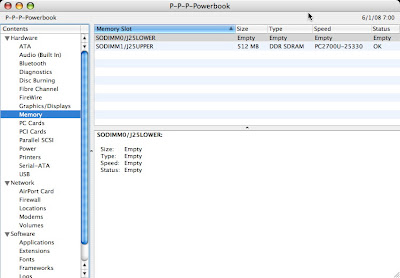
My Powerbook G4 1.5 GHz 15” (1 GB RAM) also recently developed the lower RAM slot failure. Our PB had slowed to a crawl, so I popped open System Profiler and noticed that half my RAM was missing (lower slot showed EMPTY). I thought it was the memory, so I bought another stick and tried it in both slots—the lower slot continued to show EMPTY, while the upper slot was OK.

My problem is that my PB’s serial number DOES NOT FALL within the arbitrary range selected by Apple for the Repair Extension Program. I spent an hour yesterday on the phone with Apple Tech Support, and they want me to take it to the Apple Store here in San Antonio to be checked out. Of course, they will discover (like me) that the lower slot is bad, and then they will tell me what the person at Apple told me on the phone—I’ll HAVE TO PAY TO FIX IT BECAUSE IT’S NOT IN THE SERIAL NUMBER RANGE SELECTED BY APPLE FOR THE REPAIR EXTENSION PROGRAM

I have found many examples via Google of Apple customers in my exact predicament—lower slot failure with Powerbooks outside of that serial number range. Seems to me that Apple has a bigger problem than they want to admit, so let the class actions begin. One way or another, Apple will have to own up to this considerable problem.

Recommend others searching here and having my problem snoop around via Google and sign the petition and the class action that’s being started.

Powerbook lower RAM slot failure

PowerbookApple doesn't do it often, but when they piss off their customers--they REALLY piss off their customers. We recently noticed that our Powerbook G4 15" 1.5 GHz (purchased mid-2004) was slowing down. Being dense, it took me a while to open System Profiler and notice that half of our memory was gone (from the original 1 GB down to 512 MB). The memory in the lower slot was listed as "EMPTY."

My problem is that my PB's serial number DOES NOT FALL within the arbitrary range selected by Apple for the PowerBook G4 (15-inch 1.67/1.5GHz) Memory Slot Repair Extension Program. I spent an hour yesterday on the phone with Apple Tech Support, and they want me to take it to the Apple Store here in San Antonio to be checked out. Of course, they will discover (like I did) that the lower slot is bad, and then they will tell me what the person at Apple told me on the phone:

I'LL HAVE TO PAY TO FIX IT BECAUSE IT'S NOT IN THE SERIAL NUMBER RANGE SELECTED BY APPLE FOR THE REPAIR EXTENSION PROGRAM.

And I'm not the only one. Others with Powerbooks outside of Apple's arbitrarily chosen serial number range are also plagued with this problem:

RAM slot not working after upgrading to Leopard | MacRumors Forums

I was not aware of this problem, however my serial number is outside the range of "affected" machines. It does exactly describe my problem, though. And perhaps it has nothing to do with Leopard but like I said, it happened just after I installed it. I suppose I can live on 1GB of RAM, but 1.5 would definitely help.

Thanks for your replies,
Matt

PowerBook G4: Memory Problems | Macintouch

I have a 1.33 Ghz 15" Powerbook and the lower memory slot has died in my machine - twice. Both times Apple (under Applecare) replaced the motherboard, but the problem clearly predates the newer machines, and I'm a little anxious about what happens once my expensive Applecare coverage lapses. I suspect that Apple is being disingenuous about the extent of this issue.

Apple - Support - Discussions - logic board died after being replaced 2 years ago:

My PB's logic board is broken again. It was fixed under warranty two years ago.

I was having problems with it, it was running extremely slow and the battery no longer charges. Turns out I am missing half of my RAM. The lower slot no longer sees the RAM, which is what happened two years ago when my logic board died.

My computer is not under warranty anymore (no AppleCare). What should I do? Has this happened to you?

This is just a small sampling of what's out there. Other key links to check out regarding this considerable problem:

Lower Memory Missing; All Forces

Allegations of 15" PowerBook RAM Slot Defect

G4 Powerbook Aluminum RAM slot repair

(if you're not willing to wait for this to play out legally - $250 repair)

Mac OS X updates disable or damage PowerBooks?

PowerBook Logic Board Failure

Powerbook Ram Slot Failure

PowerBook - PB G4 Memory Slot Failure

My cheaper, temporary solution will be to buy a 1 GB stick (yet more expense to me--thanks Apple) to insert in the one good slot; at least I'll have my original amount of RAM again. If you're one of those who had more than 1 GB RAM, you'll have to wait or pay for the repair above--don't send it to Apple (too expensive and too little warranty).

There's a petition out there to sign (4701 signatures as of June 2008), and you can also sign up here for a potential class action lawsuit. Don't get stuck paying for something that's not your fault!

Shame Apple! Look at me--devoted Apple fanboy since 1986--having to beg Apple to treat me like a loyal customer. Shame, shame, shame!

Sunday, May 11, 2008

Safari 3.1.1. - "Error while printing"

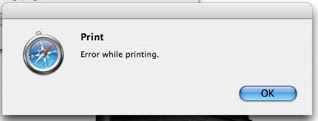
Here's a weird one. Under one account on my Powerbook, I suddenly can no longer print from Safari (3.1.1.) via Bonjour (i.e., a shared printer on another Mac). Other applications work fine, and other accounts can print from Safari.

Console consistently looked like this:

2008-05-11 10:22:09.602 Safari[1609] PMSessionValidatePrintSettings failed (error code = -50)
2008-05-11 10:22:09.672 Safari[1609] PMSessionEndDocumentNoDialog failed (error code = -30871)
2008-05-11 10:22:11.243 Safari[1609] Failed to end PMPrintContext

Here are the solutions I tried that were ineffective:

The culprit?

Little Snitch...it had been accidentally set to block Safari connections.

Sunday, May 04, 2008

Safari 3.x and PithHelmet

First, if you can't even install PithHelmet (because your Safari isn't recognized), use Pacifist to get the PithHelmet.bundle onto your desktop. It's a SIMBL plug, so make the following directory (if not already there) and place this plugin within it:

/Library/Application Support/SIMBL/Plugins/PithHelmet.bundle

If you're using a newer Safari with an older OS (Tiger), here's how to use PithHelmet:

  • In Safari, select File>About Safari.
  • Note the version/build number in parentheses, i.e., (4525.18).
  • Quit Safari.
  • Navigate to /Library/Application Support/SIMBL/Plugins/PithHelmet.bundle.
  • Control click to show package contents.
  • Open bundle and go to Contents.
  • Double click or open info.plist in your favorite text editor.hange MaxBundleVersion to the current Safari version. This is to match the current Safari version/build.

It will then look like this:

<key>MaxBundleVersion</key>

<string>4525.18</string>

Save and relaunch Safari.

Original instructions: Mind Mining Medium; Safari 3.1 and Pith Helmet

Sunday, April 20, 2008

Can't open trash? Try this...

If you click on the Trash icon in the Dock and nothing happens, try quitting the Finder and restarting it.